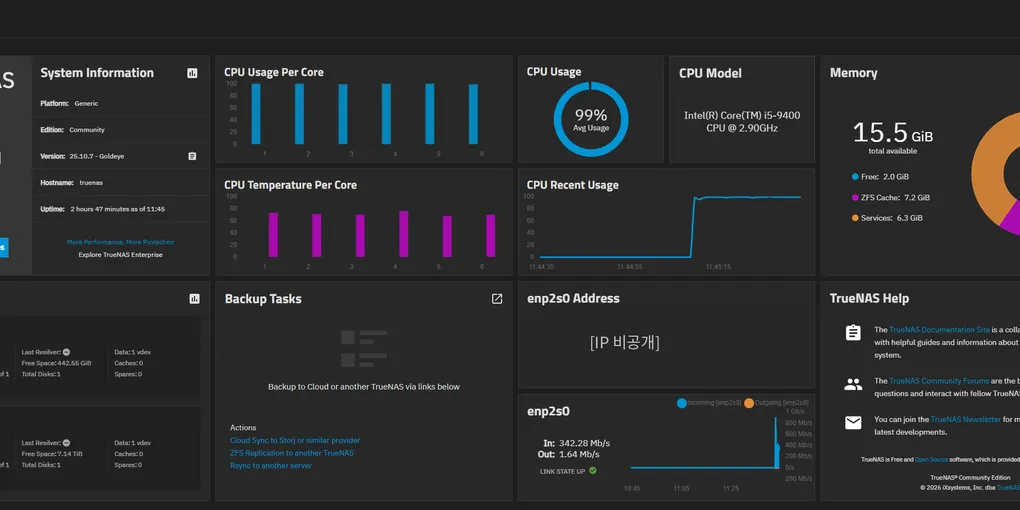
Building an Automatic Phone Photo Backup Server with TrueNAS 25.10 + Immich + Tailscale (Firewall DMZ Isolation, Snapshots and Restore Tests)
This post was translated from the original Korean article. Screenshots show the Korean interface.
Why I Built It
The photos and videos on our two family phones (Android) had grown to nearly 1TB. Instead of paying for cloud storage indefinitely, I decided to build a backup server from a spare PC. The goals were:
- New photos upload to the server automatically, without anyone having to think about it
- Deleting a photo on the phone does not delete it on the server (one-way backup)
- Not a single port opened to the internet
- The server isolated from other devices on the same network
- Alerts for disk problems, server downtime and backup failures
- An actual test that the backup can be restored
This post records the build and the places where I got stuck, in order.
Environment
| Item | Setup |
|---|---|
| Server PC | Intel 9th-gen i5 (6 cores, integrated graphics), 16GB RAM |
| OS disk | SATA SSD 250GB |
| App & DB disk | SATA SSD 500GB |
| Data disk (originals) | One 8TB helium HDD (shucked from an external drive, 5400rpm class, about 6.7 years of power-on time) |
| OS | TrueNAS Community Edition 25.10.7 |
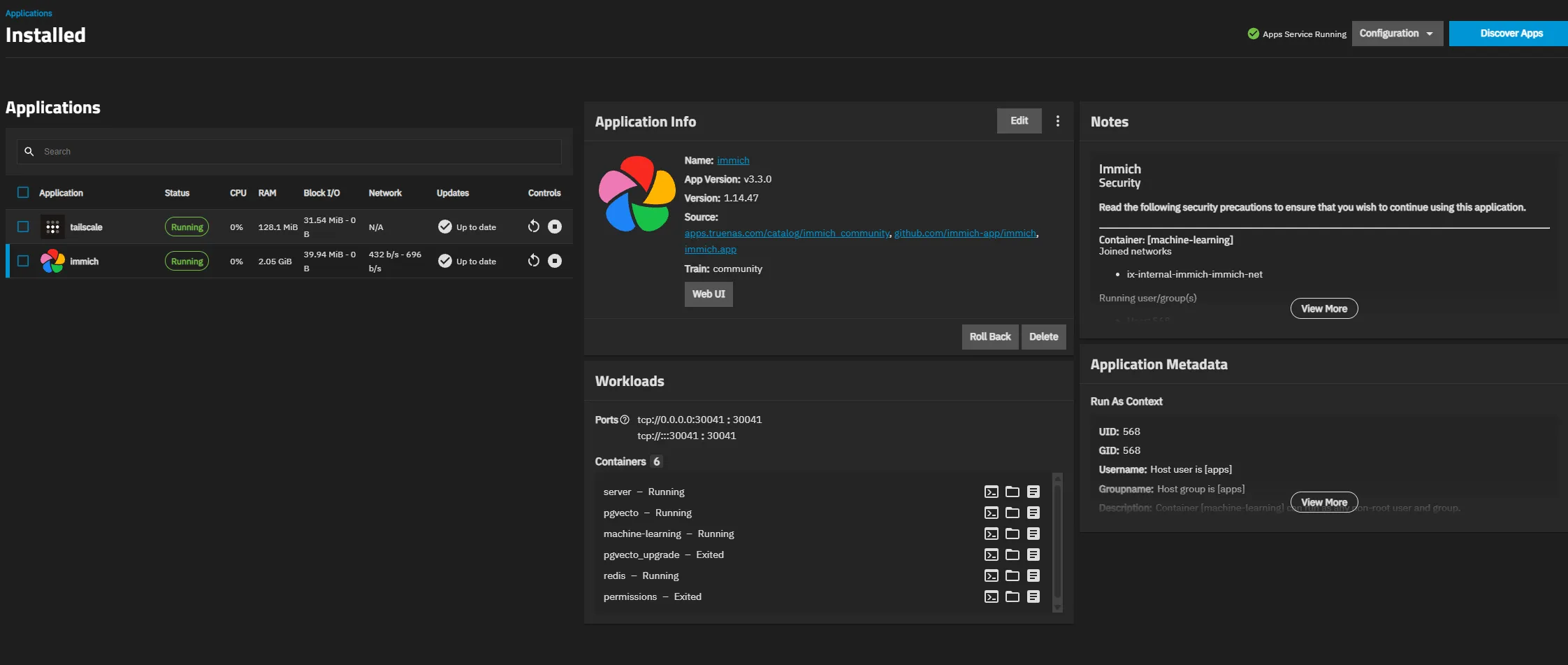
| Photo app | Immich (TrueNAS app, installed v3.2.4 → later v3.3.0) |
| Remote access | Tailscale (TrueNAS app) |
| Network | Existing internal network, behind a next-generation firewall (UTM) |
| Clients | 2 Android phones |
The biggest weakness of this setup is that there is only one HDD, and an old one. So I made a rule: “do not delete the originals on the phones until a second copy exists.”
Step 1: Checking the Disk and Installing TrueNAS
Getting the installer image
The TrueNAS download page shows a newsletter sign-up screen first, which makes the download link hard to find. If you open the version folder directly on the official distribution server (download.truenas.com), you can download the ISO and checksum file right away. The file names still use the old name, SCALE.
:: Check the ISO hash on Windows
certutil -hashfile "TrueNAS-SCALE-25.10.7.iso" SHA256
type "TrueNAS-SCALE-25.10.7.iso.sha256"
If the two values match, the file is fine.
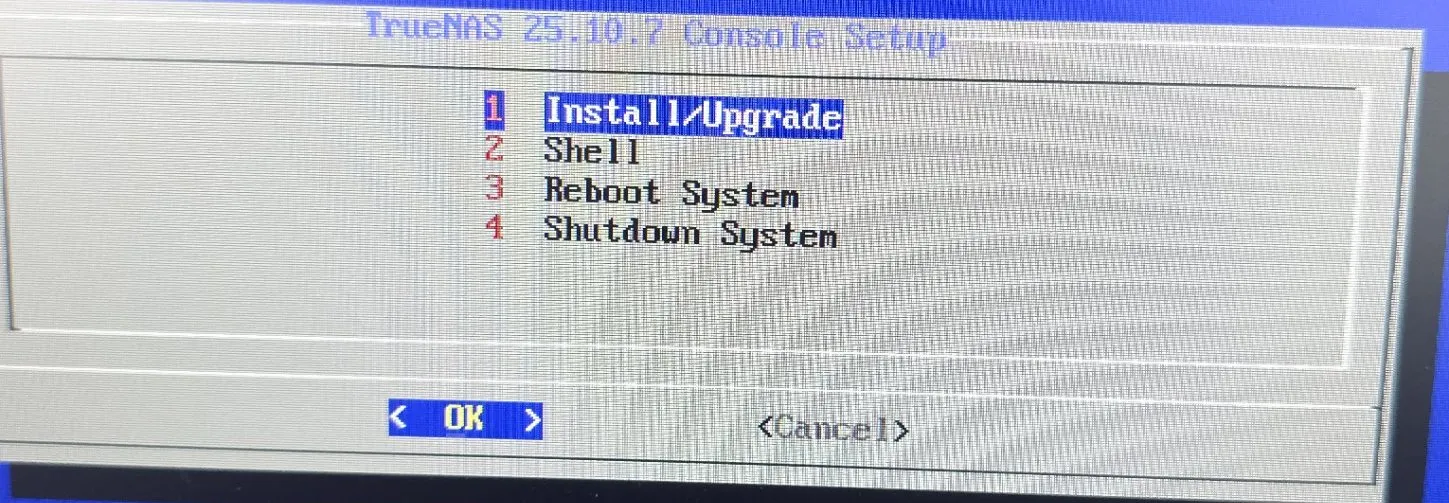
Hardware
- I connected the HDD directly to a SATA port on the motherboard, not through a USB dock. ZFS over USB can damage the pool if the connection drops.
- HDDs shucked from external drives are sometimes not detected because of the 3.3V pin (PWDIS) on SATA power. This one was detected in the BIOS right away.
- I set the BIOS to AHCI and UEFI. I only enabled automatic power-on after an outage (AC Power Recovery) after I actually had an outage. I recommend turning it on from the start.
Choosing the install target
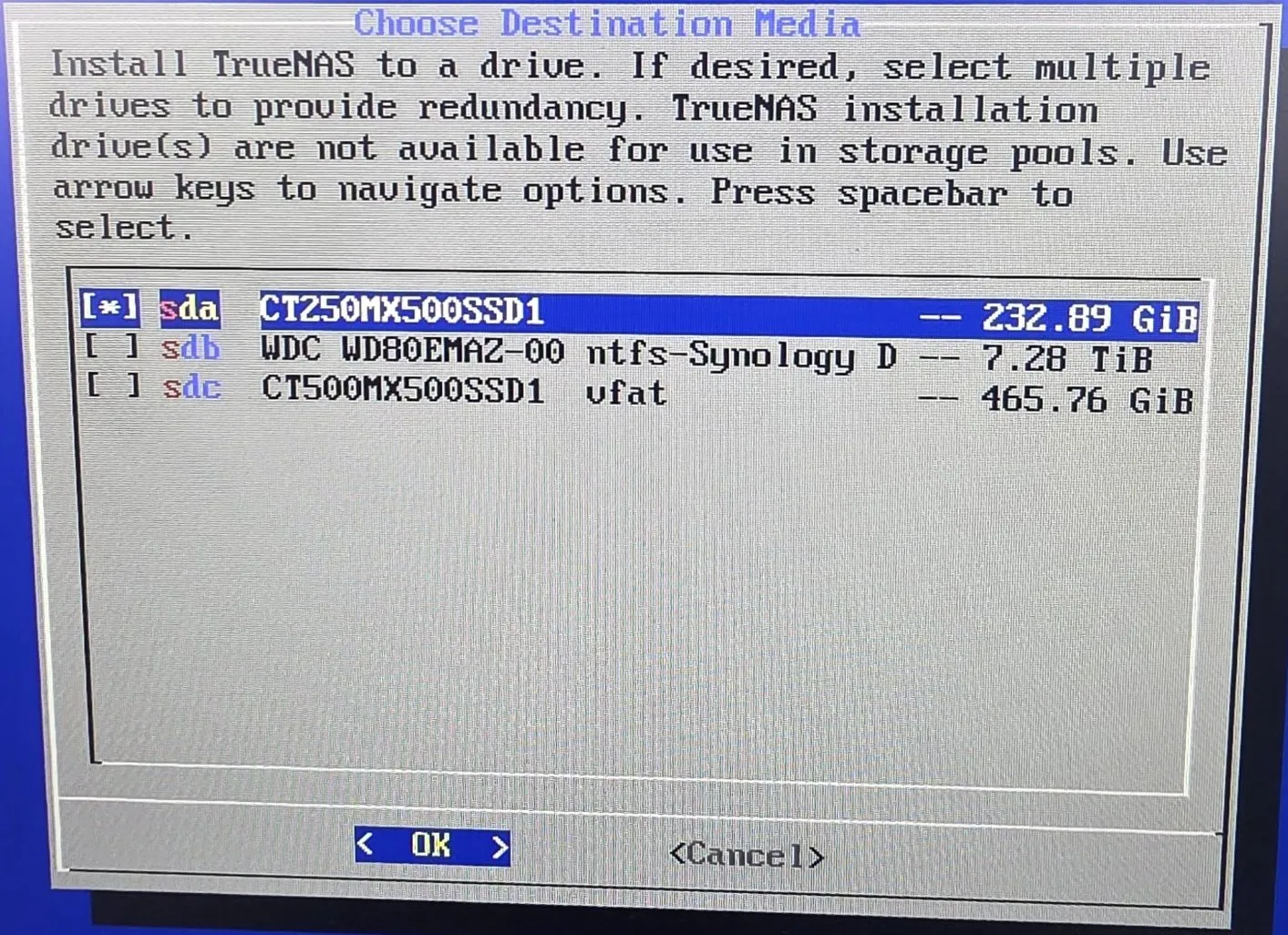
When the installer shows three disks, pick only the 250GB SSD, by capacity and model name. TrueNAS uses the entire install disk for the OS, so if you pick another disk, that disk can no longer be used for data.
Right after installing, I changed two things:
- Time zone: the default is US Pacific time, so I changed it to
Asia/Seoulunder System → General Settings → Localization. Otherwise snapshot and Cron schedules all run at the wrong times. - UI language: the community translation is missing some menus, so keeping it in English makes it easier to follow the documentation.
Step 2: Long S.M.A.R.T. Test on the HDD (No GUI in TrueNAS 25.10)
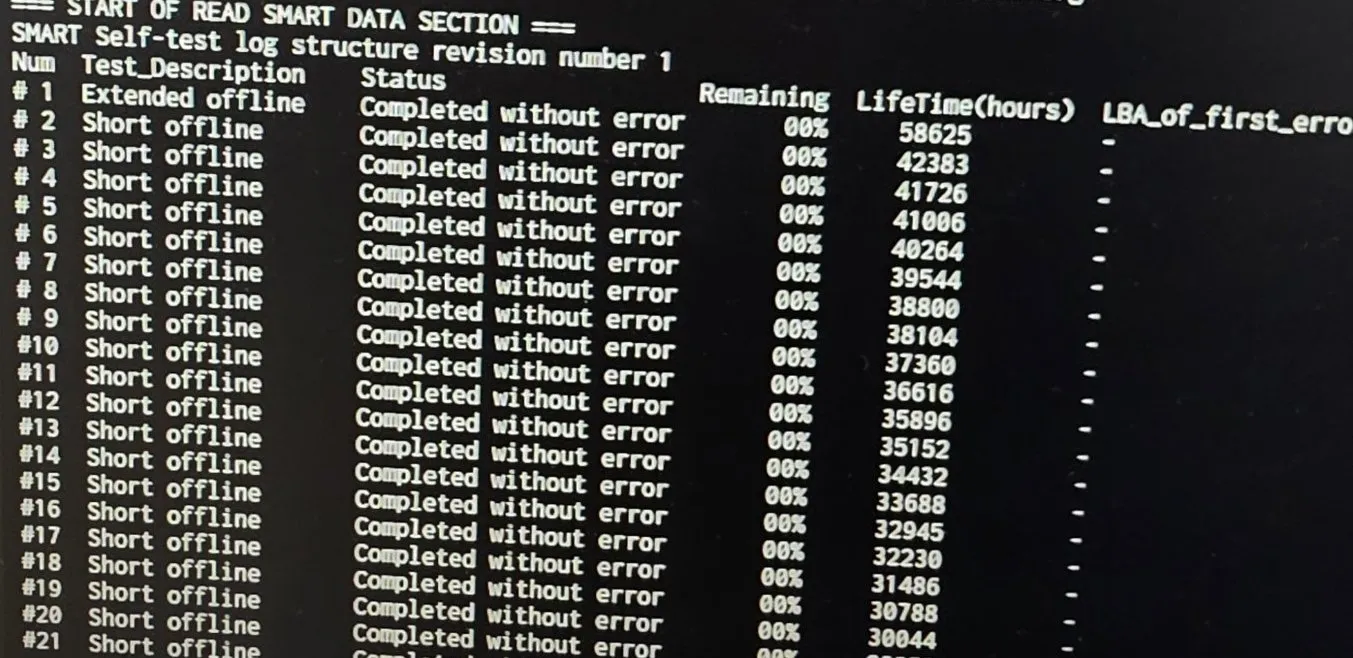
Starting with TrueNAS 25.10, the GUI for running and scheduling S.M.A.R.T. tests is gone. So I ran them with smartctl from System → Shell.
# Check the target disk (model, serial number)
sudo smartctl -i /dev/sdb

# Start the long test (read-only, data is not changed)
sudo smartctl -t long /dev/sdb

# Check progress
sudo smartctl -a /dev/sdb | grep -i -A1 "self-test execution"

# Check results
sudo smartctl -l selftest /dev/sdb
sudo smartctl -A /dev/sdb
The long test on the 8TB 5400rpm disk took about 18 hours (1,088 minutes). I checked these attributes in the results:
| ID | Attribute | Expected |
|---|---|---|
| 5 | Reallocated_Sector_Ct | 0 |
| 197 | Current_Pending_Sector | 0 |
| 198 | Offline_Uncorrectable | 0 |
| 199 | UDMA_CRC_Error_Count | 0 |
| 22 | Helium_Level (helium drives) | 100 |
Everything was normal, so I went ahead with the bulk upload.
Rebooting stops the test, so I kept the server running and worked on other things in the meantime.
Step 3: Pools and Datasets
| Pool | Disk | Use |
|---|---|---|
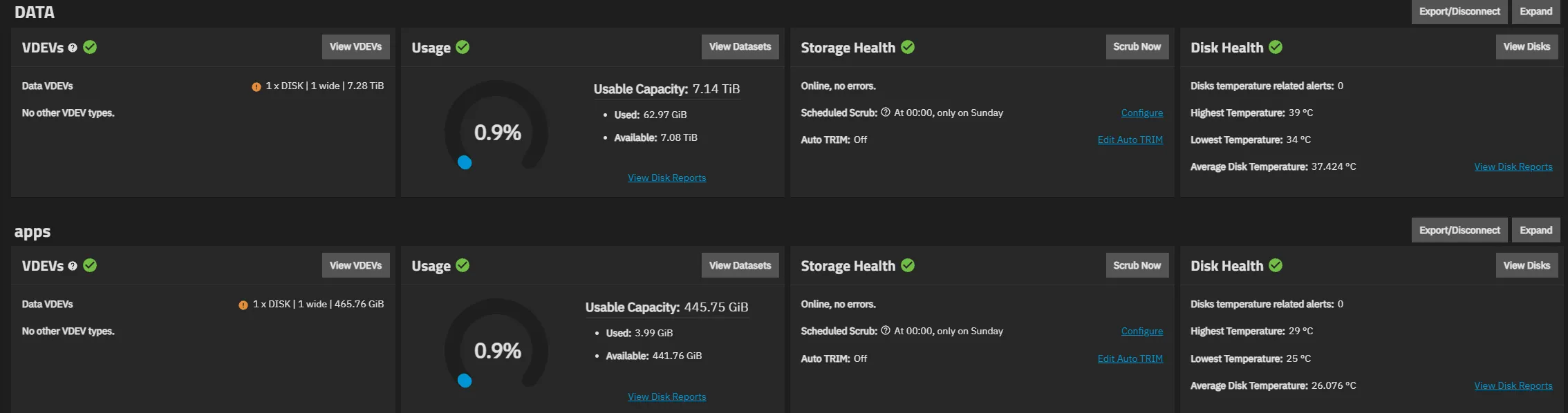
| apps | SSD 500GB | Apps, Immich DB, system dataset |
| DATA | HDD 8TB | Original photos and videos |
- With one disk per pool, the layout is Stripe. You get a “Stripe is not recommended” warning, but with this hardware it cannot be avoided.
- I did not use pool encryption. The TrueNAS documentation does not recommend pool-level encryption either, and if you lose the key, nothing in the pool can be recovered.
- Pool names cannot be changed after creation.
- In Apps → Configuration → Choose Pool, I set the app pool to the SSD pool.
- I turned on Auto TRIM for the SSD pool.
Step 4: Isolating the Photo Server on the Firewall
At first I put the server behind a router on the internal network. That way it talks directly to other devices on the same subnet without passing through the firewall, and traffic within one subnet cannot be blocked by firewall rules.
So I assigned one unused physical port on the firewall to a DMZ zone and connected the server directly to that port.
[Internal LAN]  ──  Firewall  ──  [DMZ port: photo server only, private /24]
                  │
Internet- The server gets a private address, not a public IP. Even if I open a rule by mistake, it cannot be reached directly from the internet.
- I chose a range that does not overlap the common private ranges internal PCs use (for example 192.168.0.x). If they overlap, a PC looks for the server inside its own router’s network and fails to connect.
- On the DMZ zone, all access to the firewall itself (management HTTPS, SSH, etc.) is turned off.
Firewall rules (top to bottom)
| Order | Source | Destination | Service | Action |
|---|---|---|---|---|
| 1 | One admin PC | Photo server | HTTPS | Allow |
| 2 | Photo server | WAN | DNS, HTTP, HTTPS, NTP, ping, Tailscale UDP | Allow |
| 3 | DMZ | LAN, VPN, WiFi | All | Block (Drop) |
| 4 | LAN, WAN, VPN, WiFi | DMZ | All | Block (Drop) |
- No DNAT from the internet.
- Blocking uses Drop, not Reject. Not answering at all reveals less to internal scans.
- The source of each allow rule is the exact server object, not “any”.
SNAT
The existing default SNAT rule only translated “specified hosts”, so the new range could not reach the internet. Without touching the default rule, I added an SNAT (MASQ) rule limited to the photo server as the source, above the default rule. It is easy to swap source and destination by mistake, so check before saving.
Changing the server IP (console menu)
Moving the cable cuts off the web UI, so I made the change at the server’s console.
1) Configure network interfaces→ipv4_dhcp: No,aliases: <server IP>/24→ Save- On the list screen,
a(apply), then immediatelyp(persist). If you do not presspwithin about 60 seconds, the old settings come back. 2) Configure network settings→ gateway (the firewall port’s IP), DNS (1.1.1.1, 8.8.8.8)
Blocking test
ping -c 3 1.1.1.1            # Internet: should succeed
ping -c 3 google.com         # DNS: should succeed
ping -c 3 -W 2 <internal server IP>  # Internal network: should be 100% loss
sudo chronyc sources         # Time sync: should show ^*
When I tried to open the web UI from a PC other than the admin PC, the firewall’s block page appeared. The log showed it hit the DMZ block rule with 0 bytes transferred. When web traffic is blocked by a firewall rule, the firewall shows its own block page instead, so this is expected behavior.
Step 5: Installing Tailscale
I installed it from Apps → Discover Apps → Tailscale.
| Setting | Value | Why |
|---|---|---|
| Auth Key | One-time key (Reusable off, Ephemeral off) | Registers only this one server |
| Advertise Exit Node | Off | No internet access through the server |
| Advertise Routes | Empty | No path from outside into the internal network |
| Accept Routes / Accept DNS | Off | |
| Host Network | On | To reach the server’s own web UI and Immich |
| Userspace | Off | Used together with Host Network |
After registering, I turned on Disable key expiry for the server in the admin console. Otherwise it asks for re-authentication after a while and backups stop.
The second user did not sign in to my account. They signed up with their own account, and I shared just this one server with them (device sharing).
Test: with the phone on LTE/5G instead of Wi-Fi, I checked that the server is reachable with Tailscale on and not reachable with Tailscale off.
Step 6: Installing Immich
The installer had only 3 storage entries
Older documentation listed 7 Immich storage locations (library, upload, thumbs, etc.), so I created 7 datasets in advance. But the install screen of the app version I installed (1.14.x) had only 3 entries.
| Entry | Setting |
|---|---|
| Data Storage (Upload Location) | Host Path → dataset on the HDD pool |
| Machine Learning Cache | ixVolume |
| Postgres Data Storage | Host Path → dataset on the SSD pool |
Immich itself creates library, upload, thumbs, encoded-video, profile and backups inside Data Storage. As a result the database lives on the SSD while the originals and the automatic DB backups live on the HDD, so the DB backups survive even if the SSD fails. I deleted the 6 empty datasets I had made in advance.
Other settings:
- I created the datasets with the Apps preset, which automatically gives the app user (UID 568) write permission.
- I turned on Automatic Permissions. The DB container runs as a separate user, so it only starts if the pgData folder owner matches.
- With GPU Passthrough I attached the integrated graphics so video transcoding uses Quick Sync.
- The DB and Redis passwords use only letters and numbers. The reason is in “Where I Got Stuck” below.
- I left Host IPs empty. If you set the Tailscale IP, Immich can fail at boot when it starts before Tailscale and cannot open the port. Access control is the firewall’s job.
Server settings (Immich admin page)
| Setting | Value |
|---|---|
| Storage template | {{y}}/{{y}}-{{MM}}/{{filename}} |
| Storage label per user | Name in English letters |
| Automatic DB backup | Daily at 02:00, keep 14 |
| Trash | 30 days |
| Transcoding acceleration | Quick Sync |
The admin account is only for server settings; the phone apps sign in with regular user accounts.
Phone settings
- Server address in the Immich app:
http://<Tailscale IP>:30041(not https) - Sync remote deletions off; Free up space not used
- Backup condition: Wi-Fi + charging
- Tailscale: always-on VPN on, Block connections without VPN off (if it is on, the phone loses all internet whenever Tailscale disconnects)
- Battery usage set to “Unrestricted” and excluded from battery optimization for both Tailscale and Immich
I expected uploads only in the early morning, but in practice they happened whenever the phone was charging or idle, and immediately when the app was opened. Photos taken that morning were already on the server, so there was no need to switch to a scheduled-upload app.
Step 7: Snapshots, Backups, Alerts and Disk Monitoring
ZFS snapshots
Data Protection → Periodic Snapshot Tasks
| Dataset | Time | Keep |
|---|---|---|
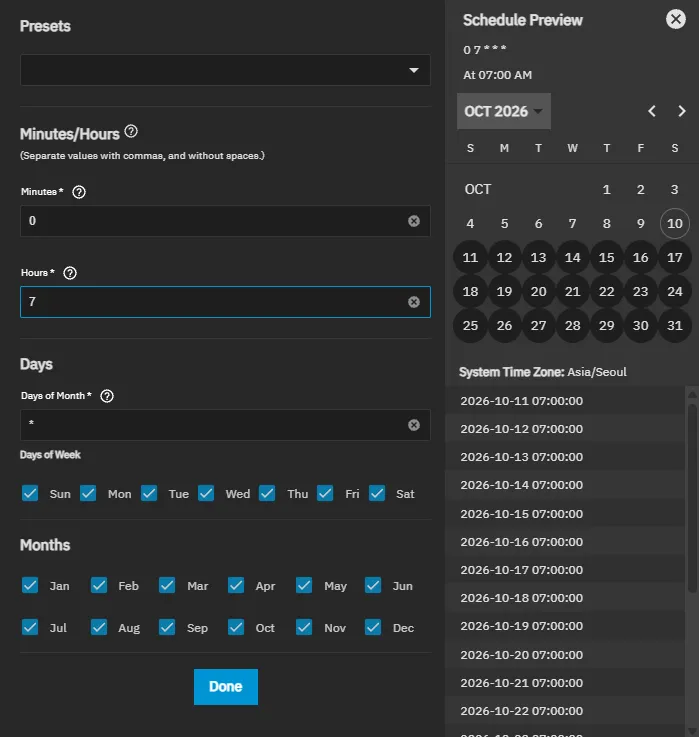
| Originals dataset (HDD) | Daily 07:00 | 30 days |
| DB dataset (SSD) | Daily 07:00 | 14 days |
- I timed it so the 02:00 DB backup file is included in the 07:00 snapshot.
- I turned on “Allow Taking Empty Snapshots”. With one snapshot for every day and no gaps, I can tell whether the task failed just by looking at the list.
Backing up the TrueNAS configuration file
In TrueNAS 25.10 it is under System → Advanced Settings → Manage Configuration → Download File (General Settings in earlier versions). You must check Export Password Secret Seed, or saved credentials cannot be used when you restore onto a new boot disk. The file contains secrets, so I did not keep it on my everyday PC or in a shared folder.
Alerts: Telegram
To avoid opening extra mail ports on the firewall, I used Telegram, which works over HTTPS only.
- Create a bot with BotFather → keep the token
- Press Start in your bot
- Find your Chat ID
- System → Alert Settings → Alert Services → Add → Telegram, Level: Warning
Detecting server downtime: Healthchecks.io
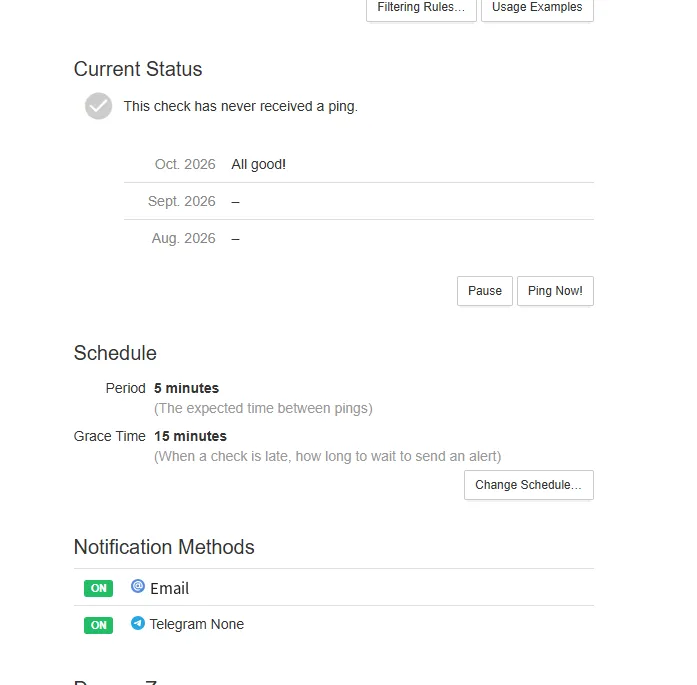
TrueNAS cannot send an alert when it is down. So the server sends a signal to an external monitoring service every 5 minutes, and that service alerts me when the signals stop. I set Period to 5 minutes and Grace to 15 minutes.
System → Advanced Settings → Cron Jobs (every 5 minutes):
curl -fsS -m 10 -o /dev/null http://127.0.0.1:30041/api/server/ping && curl -fsS -m 10 --retry 3 -o /dev/null https://hc-ping.com/<UUID> || curl -fsS -m 10 --retry 3 -o /dev/null https://hc-ping.com/<UUID>/fail- If Immich responds, it sends a success signal; if not, a failure signal.
- If the server goes off or the internet drops, the signals stop altogether and an alert arrives after 20 minutes.
- I stopped and restarted the Immich app myself to confirm that both the down alert and the recovery alert arrive.
Scheduled disk checks
Device names such as sda and sdb change after a reboot (they really did). So I used stable paths that include the serial number.
lsblk -d -o NAME,SIZE,MODEL,SERIAL
ls -l /dev/disk/by-id/ | grep -v part
Check script (/mnt/<SSD pool>/scripts/disk-health.sh):
#!/bin/bash
# Disk health check: send fail to Healthchecks.io if a value rises above its baseline or a test fails
URL="https://hc-ping.com/<UUID>"
DISKS="ata-<HDD model>_<serial> ata-<SSD model>_<serial> ata-<SSD model>_<serial>"
declare -A BASE
BASE[ata-<SSD model>_<serial>_199]=394   # attribute that uses its past cumulative value as the baseline
MSG=""
for d in $DISKS; do
  DEV="/dev/disk/by-id/$d"
  if [ ! -e "$DEV" ]; then MSG="$MSG\n$d: disk not detected"; continue; fi
  H=$(smartctl -H "$DEV" | grep -iE "result|status")
  echo "$H" | grep -qiE "PASSED|OK" || MSG="$MSG\n$d: overall health problem ($H)"
  for id in 5 197 198 199; do
    v=$(smartctl -A "$DEV" | awk -v id="$id" '$1==id {print $10}')
    b=${BASE[${d}_${id}]:-0}
    if [ -n "$v" ] && [ "$v" -gt "$b" ] 2>/dev/null; then MSG="$MSG\n$d: ID $id value $v (baseline $b)"; fi
  done
  st=$(smartctl -l selftest "$DEV" | grep -m1 "^# 1")
  if [ -n "$st" ] && ! echo "$st" | grep -qiE "Completed without error|in progress|Interrupted|Aborted by host"; then
    MSG="$MSG\n$d: latest self-test problem ($st)"
  fi
done
if [ -z "$MSG" ]; then
  curl -fsS -m 10 --retry 3 -o /dev/null "$URL"
else
  printf "%b" "$MSG" | curl -fsS -m 10 --retry 3 -o /dev/null --data-binary @- "$URL/fail"
fi
sudo chmod 700 /mnt/<SSD pool>/scripts/disk-health.sh # contains the UUID, so readable by root onlyCron jobs (Run As User: root):
| Job | Schedule | Command |
|---|---|---|
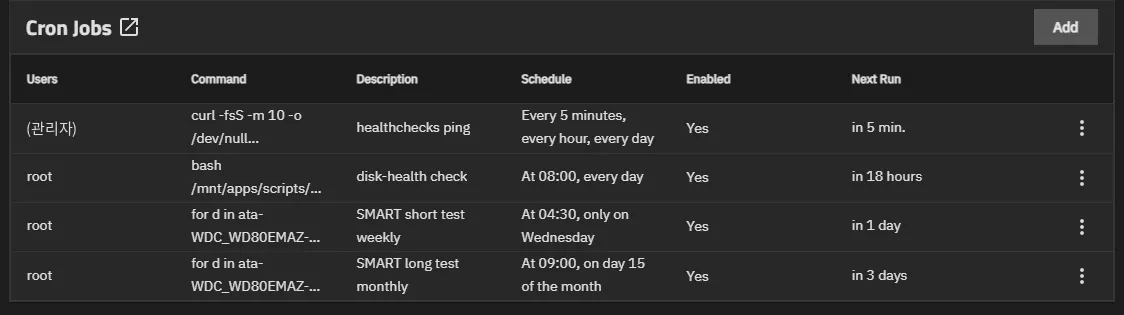
| Health check + alert | Daily 08:00 | bash /mnt/<SSD pool>/scripts/disk-health.sh |
| Short test | Wednesdays 04:30 | for d in <3 by-id names>; do smartctl -t short /dev/disk/by-id/$d; done |
| Long test | 15th of each month 09:00 | for d in <3 by-id names>; do smartctl -t long /dev/disk/by-id/$d; done |
The test commands only start the tests; the check script reads the results the next day.
Step 8: Restore Tests
Having a backup is not the same as being able to restore it. Without touching the originals, I checked three things.
A. Do the files in the snapshot match the originals?
sudo ls /mnt/<originals dataset>/.zfs/snapshot/
sudo sha256sum /mnt/<originals dataset>/.zfs/snapshot/<snapshot name>/library/<user>/<year>/<year-month>/<file> \
               /mnt/<originals dataset>/library/<user>/<year>/<year-month>/<file>
The two hashes matched.

B. Is the DB backup file intact?
sudo gzip -t /mnt/<originals dataset>/backups/<backup file>.sql.gz && echo "archive OK"
sudo zcat /mnt/<originals dataset>/backups/<backup file>.sql.gz | head -n 20
I confirmed the PostgreSQL database dump header.
C. Run a second Immich from snapshot clones
- Clone the snapshots of the originals and DB datasets, each with Clone To New Dataset
- Install a test Immich with Install Another Instance: port 30042, machine learning off, storage pointed at the clones, Automatic Permissions off
- Open it in a browser, sign in with a user account → confirm the photos display correctly
- Delete the test app and the clones (while a clone exists, its source snapshot is not deleted automatically)
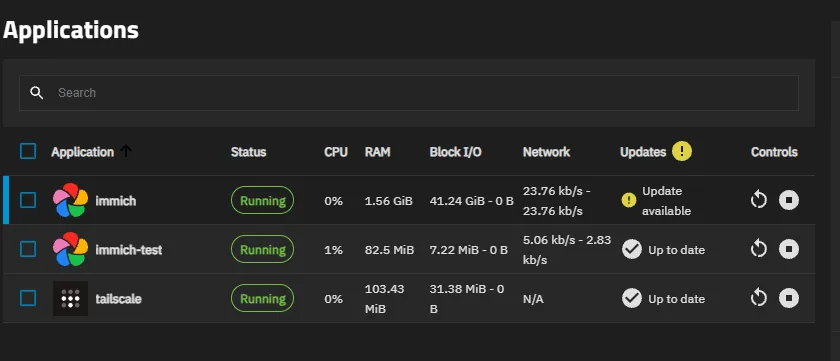
The catalog only offered the latest version, so this test doubled as a rehearsal of the DB upgrade to the new version. I ran into two problems along the way, covered below. After the rehearsal succeeded, I took a manual snapshot and updated the production Immich.
Where I Got Stuck and How I Fixed It
1. A USB stick made with Ventoy would not boot
It stopped before the installer with Unable to find a medium containing a live file system. This happens when a Debian Live–based ISO is booted in Ventoy’s normal mode. I fixed it by recreating the USB stick with Rufus in DD image mode. Windows Explorer then pops up a window asking you to format the stick; do not click Format.
2. Typos in smartctl and grep
- The hyphen in
smartctl -t longhad turned into a different character, giving the errorYou have provided 2 device names. grep "self-test execution"did not match the capitalizedSelf-testin the output, so it printed nothing.grep -ifixed it.- When you paste long commands into the web Shell, the last characters can get cut off or control characters (
^[[200~) can sneak in. Make a habit of checking the last line after pasting.
3. Could not open Immich → I had typed https
The Immich app port only answers plain http. I had typed https in the browser, so it would not connect. The Tailscale link is encrypted, so http is fine here.
4. Tailscale only connected through a relay
I wanted to do the bulk upload from a phone on the internal Wi-Fi, but tailscale status showed relay "tok". That connection goes through an overseas relay server and is far too slow for a bulk upload.
# In the Tailscale app container shell
tailscale status
tailscale ping <phone Tailscale IP>
The firewall log showed the server and the phone trying to connect to each other directly over UDP and being blocked by the DMZ↔LAN block rules. For the upload period only, I added two temporary rules above the block rules allowing the one router the phone was on ↔ the server, all UDP ports, and the connection changed to direct. Receive speed after that was about 340Mbps. When the bulk upload was done, I disabled these rules.
At home or on cellular the connection goes through a relay, but at a few seconds per photo it is no problem for everyday backup.
5. Originals saved in a UUID folder and an Other folder
After the upload started, I found paths like library/<user UUID>/2025/Other/07/file.jpg.
- The user’s storage label was empty, so the UUID became the folder name.
- The template was an album-based preset, so photos without an album went into
Other. With this scheme, adding a photo to or removing it from an album can move the file.
After setting the label and switching the template to date-based, I ran Storage Template Migration from the jobs page of the admin screen to move the existing files. The moves stay within one dataset, so it finished quickly.
sudo ls /mnt/<originals dataset>/library
sudo find /mnt/<originals dataset>/library/<label> -type f | head -n 5
6. The server did not come back after a power outage
After an outage I could not reach it remotely. Other servers on the same UPS were still up.
sudo journalctl -b -1 -n 50 --no-pager   # last log lines of the previous boot
last -x | head -n 10                     # boot/shutdown records (look for crash)
sudo zpool status -x                     # expect: all pools are healthy
The last log lines simply stopped in the middle of normal logging with no error, and the shutdown record said crash. The server was not plugged into the UPS’s battery-backed outlet, so it lost power instantly. The BIOS also had no power-on-after-outage setting.
- Moved it to a battery-backed outlet and set AC Power Recovery = Power On in the BIOS
- Pool and disk checks showed no problems (only Power-Off_Retract_Count went up)
- This incident is why I added the Healthchecks.io downtime check above
Note that even while the server was off, the firewall showed its port as 1000Mbps connected. The network card kept the link up on the motherboard’s standby power. Do not judge that a server is on from the port status alone.
I did not set up the UPS’s USB integration (automatic shutdown on outage). The UPS is shared with other servers, and a configuration mistake that sends a “UPS output off” command could shut down other equipment too.
7. The check script sent a failure alert right away
The OS SSD’s UDMA_CRC_Error_Count was 394. This is a running total of transfer errors between the disk and the motherboard; it is separate from damage to the storage media and never goes down. I changed the script to save the current value as a baseline and alert only when it increases (the BASE array in the script above). If it does increase, check the SATA cable.
8. Test Immich install failed: Redis password cannot contain [#]
The password contained # and was rejected while the install template was generated. App passwords are safest with letters and numbers only.
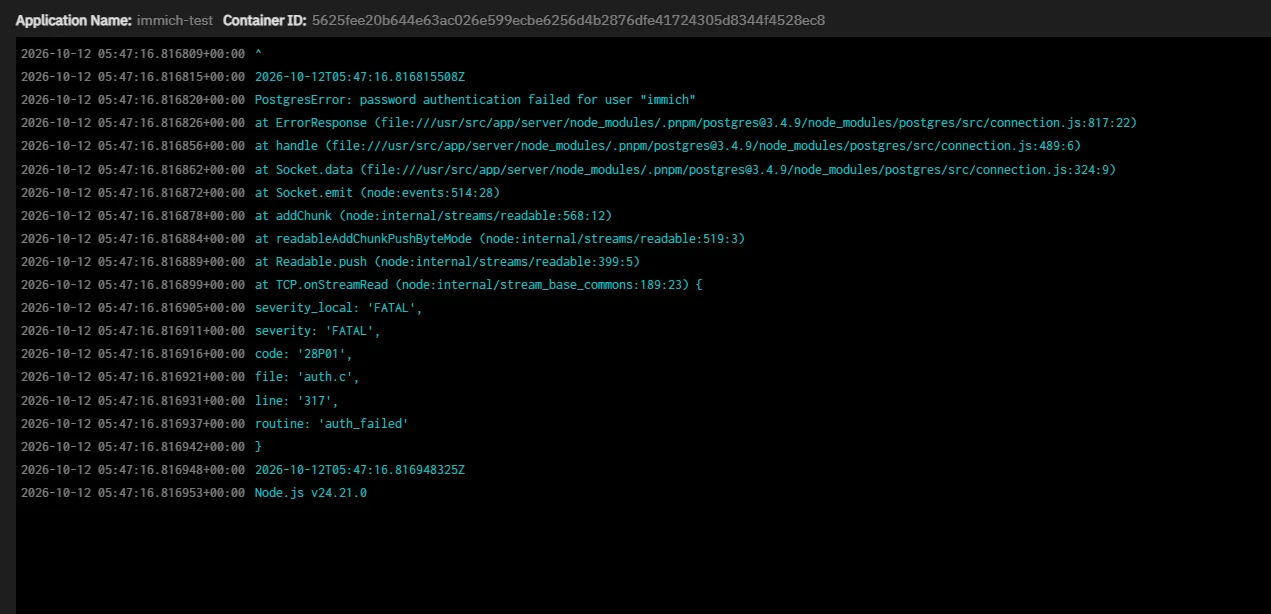
9. Test Immich would not start: password authentication failed for user "immich"
The cloned DB contains the production Immich’s DB password. I had entered a different value in the test app, so it could not connect. I looked up the password on the production app’s Edit screen (cancelling without saving) and entered the same value. It also means that in a real disaster recovery you cannot bring the DB back without the DB password, so I double-checked that my password manager has the exact value.
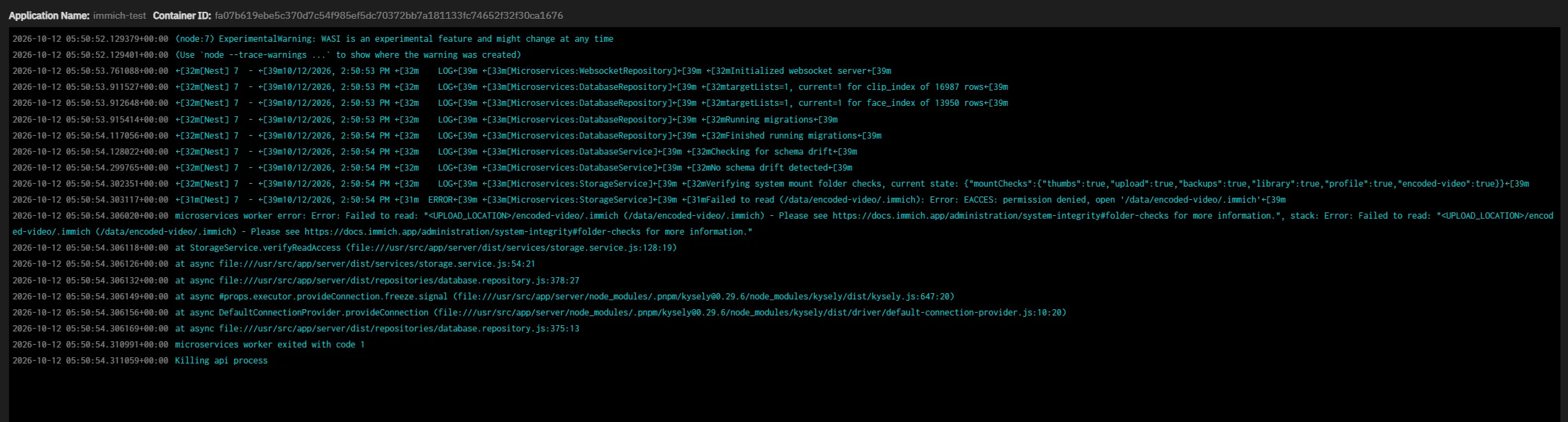
10. Test Immich would not start: EACCES: permission denied … /data/encoded-video/.immich
The DB migration succeeded, but it stopped at the folder check.
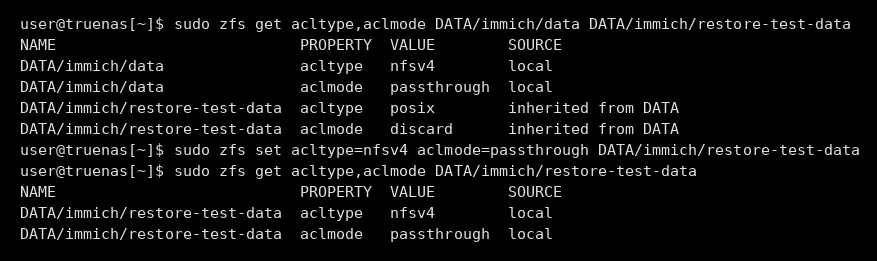
sudo zfs get acltype,aclmode <originals dataset> <clone dataset>| Dataset | acltype | aclmode | SOURCE |
|---|---|---|---|
| Original (Apps preset) | nfsv4 | passthrough | local |
| Clone | posix | discard | inherited |
A ZFS clone inherits these properties from its parent dataset, not from the original. So the NFSv4 permissions on the files were ignored. I fixed it by setting the same values as the original on the clone only.
sudo zfs set acltype=nfsv4 aclmode=passthrough <clone dataset>A snapshot rollback (reverting the original dataset itself) keeps these properties, so this problem does not occur there.
11. A manual snapshot almost missed the data
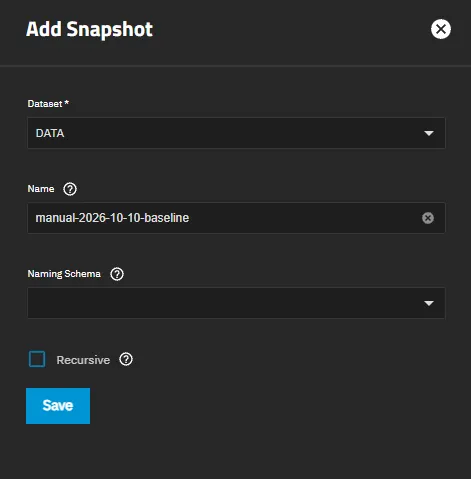
When I created a manual snapshot, the Dataset field defaulted to the top-level pool. If you pick the top level with Recursive off, the actual data in the child datasets is not included in the snapshot. Select the dataset that actually holds the data.
12. A fake BotFather on Telegram
The first search result was an impostor account with no verification badge that urged you to “subscribe” and move to another bot. Open the https://t.me/BotFather link directly and check for the blue verification badge. For the Healthchecks.io Telegram integration, too, I used the link on the service’s page instead of searching in Telegram.
Update Procedure
I updated Immich in the order worked out during the restore test.
- Manual snapshots of the originals and DB datasets (select the actual datasets, not the top level)
- Read the release notes; rehearse on clones if possible
- Apps → the app → Update (not Update All)
- Verify
curl -sS -m 5 http://127.0.0.1:30041/api/server/ping # {"res":"pong"}- Update the Immich app on the phones too
- If something goes wrong: Roll Back → stop the app → snapshot Rollback → start the app
You may get one downtime alert during the update.
Summary and Cautions
What I ended up with
- Automatic one-way backup from 2 phones to the server (on Wi-Fi + charging; same-day photos upload automatically)
- No inbound ports open to the internet; remote access only through Tailscale
- The photo server isolated on a firewall DMZ port, with blocked access to the internal network confirmed
- Daily ZFS snapshots and Immich DB backups
- Scheduled disk checks with alerts on problems, plus server downtime alerts
- Restore test and update rehearsal done
Cautions
- Snapshots do not protect against disk failure. With a single HDD, I will not delete the originals on the phones until I have a second copy (on another disk or in another place). As of this post, the second copy is still on my to-do list.
- TrueNAS and Immich move menus and change the app install screens often between versions. Go by the install screen and the current documentation rather than old guides.
- Refer to disks by
/dev/disk/by-id/paths, not/dev/sdX. - Plug the server into the UPS’s battery-backed outlet, and enable power-on after outage in the BIOS.
- Keep what you need for a restore (DB password, configuration file, app versions) outside the server.
- A VPN-based ad blocker on an Android phone disconnects Tailscale. Only one VPN can run at a time.
- PCs behind a router appear to the firewall as the router’s single address. To allow only a specific PC, that PC needs an address the firewall can see directly.