Running Local AI on Your PC: Installing Ollama and Choosing Models by VRAM
This post was translated from the original Korean article. Screenshots show the Korean interface.
I installed Ollama so I could run an AI on my own PC to help with blog work. The installation itself was not hard, but in practice I got stuck a few times on things the guides rarely mention, such as models being saved to the wrong drive and the first run being oddly slow.
This post records the installation steps, how to choose a model that fits your graphics card memory (VRAM), and the problems I hit along with how I solved them, with real numbers. (October 2026, Ollama 0.40.3)
Test PC
| Item | Spec |
|---|---|
| CPU | AMD Ryzen 7 5800X |
| RAM | 32GB DDR4-3200 |
| Graphics card | NVIDIA RTX 3080 12GB (driver 595.97) |
| Storage | C: NVMe 1TB (Windows), D: NVMe 1TB (for models) |
| OS | Windows 11 |
1. Which Models Can Your Graphics Card Run?
The most important thing for local AI is graphics card memory (VRAM). A model runs fast only when it fits entirely in VRAM; once it spills over, speed drops sharply.
The VRAM you need is roughly the model file size + headroom for the conversation length (context). For the commonly used 4-bit quantized (Q4) models, it looks like this:
| VRAM | Model size that runs comfortably |
|---|---|
| 8GB | 7–8B |
| 12GB | 12–14B (used here) |
| 16GB | 20–24B |
| 24GB | 27–32B |
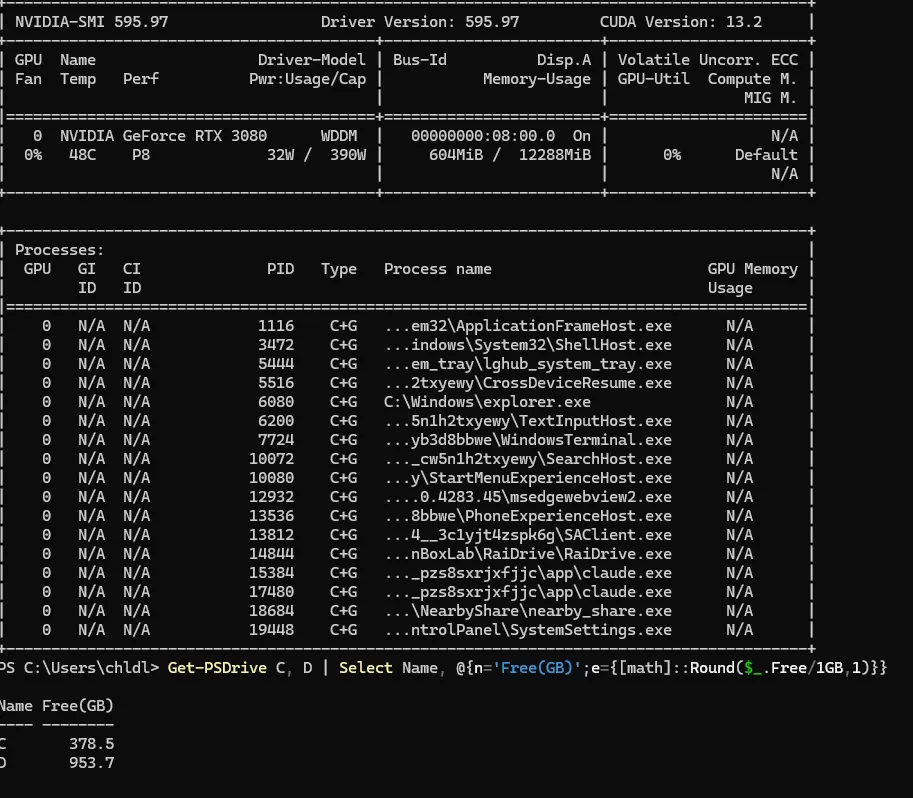
One thing to watch: if the graphics card also drives your monitor, the desktop and open apps use part of the VRAM. My PC uses about 0.6GB even when idle, so the VRAM I could actually use was about 11.5GB, not 12GB.
2. Choosing a Model: I Compared Two
From the models that fit in 12GB, I tested two that support Korean with the same request: “Write a 1,500-character blog post on how to speed up Windows 11 boot” (asked in Korean).
| Item | qwen3:14b | gemma3:12b |
|---|---|---|
| Model size | 9.3GB | 8.1GB |
| Generation speed | 73.4 tokens/s | 75.6 tokens/s |
| Korean | Chinese words mixed in (“任务 관리자”) | Natural |
| Length | Shorter than requested | Longer than requested |
Speed was almost the same, and gemma3:12b clearly wrote more natural Korean.
However, both models made factual errors. They got Windows Settings menu paths wrong and even described features that do not exist. Text written by local models of this size should not be used as is; a person must check it. I use local AI not for writing articles but for tasks where I can check the result at a glance, such as title ideas, summaries and tags.
One more thing to check when choosing a model is the license. Commercial-use terms differ from model to model, so if you plan to use one for something tied to income, such as a blog or work, check the license on the model page first.
3. Before Installing: Decide Where Models Are Stored
By default, Ollama stores models in your user folder on the C drive (C:\Users\<username>\.ollama\models). Each model is 8–10GB, so a few downloads fill up the C drive quickly.
I set environment variables before installing so that models are stored on the D drive. Run this in PowerShell:
New-Item -ItemType Directory -Path "D:\Ollama\models" -Force
[Environment]::SetEnvironmentVariable("OLLAMA_MODELS", "D:\Ollama\models", "User")
[Environment]::SetEnvironmentVariable("OLLAMA_CONTEXT_LENGTH", "8192", "User")OLLAMA_MODELS: where models are storedOLLAMA_CONTEXT_LENGTH: how much conversation the model handles at once. Longer uses more VRAM. For a 14B model on 12GB, about 8192 worked well.
4. Installing Ollama
- Download the Windows installer from ollama.com and run it.
- When installation finishes, right-click the Ollama icon at the bottom right of the taskbar, choose Quit, then start Ollama again from the Start menu.
- Open a new PowerShell window and check the installation.
ollama --version
ollama list
Step 2 matters. I skipped it, and that caused the problem in the next step.
By the way, you do not need an account to run models on your own PC. However, models whose names end in :cloud run on Ollama’s servers, not on your PC, so what you type leaves your machine. If you want to stay local, avoid those models.
5. Downloading a Model, and My Problem: It Was Saved to the C Drive
ollama pull qwen3:14bThe first model I downloaded was qwen3:14b. The download finished normally, but when I checked the folder on the D drive, it was 0GB. The model had been saved to the default location on the C drive.
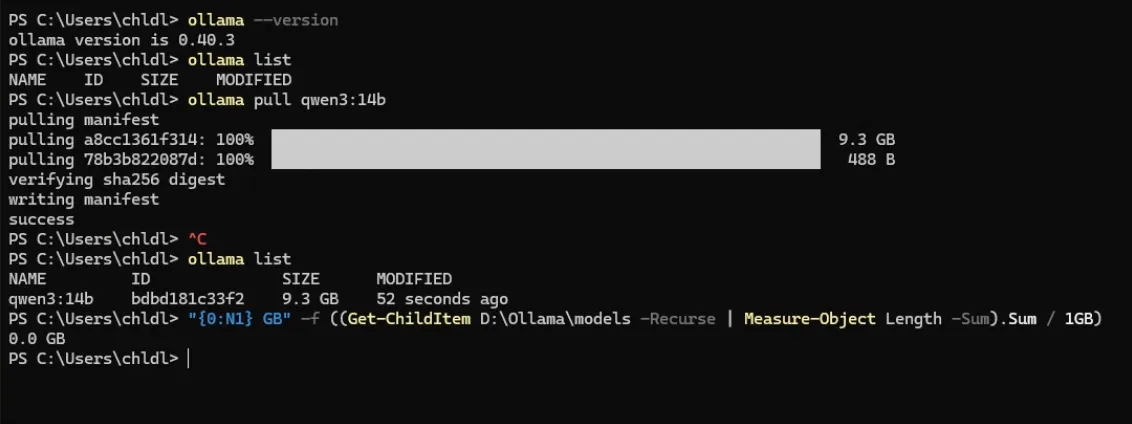
Cause: Ollama starts automatically right after installation, and at that point it has not yet read the environment variables you just set. So it saves to the default location.
Fix: No need to download again; just move the files. Quit Ollama completely first, then move them.
# 1. Stop Ollama completely (run after choosing Quit from the tray icon)
Get-Process -Name "ollama*" -ErrorAction SilentlyContinue | Stop-Process -Force

# 2. Move the model files to the D drive
$src = "$env:USERPROFILE\.ollama\models"
$dst = "D:\Ollama\models"
Move-Item "$src\blobs"     $dst -Force
Move-Item "$src\manifests" $dst -Force
Then start Ollama again from the Start menu. If ollama list in a new PowerShell window shows the model, you are done.
Do not be alarmed if the sizes look different. Ollama showed 9.3GB, but PowerShell calculated 8.6GB. They simply count 1GB differently (1,000,000,000 bytes versus 1,073,741,824 bytes); it is the same size.
6. Checking That the Model Really Runs on the GPU
Add --verbose when running a model, and the speed is shown at the end.
ollama run gemma3:12b --verbose "Suggest 5 blog post titles with tips for speeding up Windows 11 boot"Run ollama ps in another PowerShell window to see where the model is loaded.
ollama psIf PROCESSOR shows 100% GPU, the whole model is on the graphics card, which is what you want. If it shows a CPU/GPU mix, VRAM ran out and part of the model moved to the CPU, and speed drops sharply.

Why the first run was unusually slow
The first time I ran qwen3:14b, generation speed was 12.95 tokens/s, far slower than expected. Running the same command again gave 73.36 tokens/s. Right after a model is first loaded onto the graphics card, initialization work seems to get mixed into the measurement. When comparing speeds, go by the second run.
Also, by default Ollama unloads a model from VRAM after 5 minutes without use. So the first question after a break takes extra time while the model loads again.
7. Stop It From Quietly Slowing Down When VRAM Runs Out
When VRAM runs short, the NVIDIA driver does not raise an error; it borrows system memory (RAM) instead. ollama ps still says 100% GPU while the real speed drops sharply, which makes the cause hard to find.
To prevent this, add a setting just for Ollama in the NVIDIA Control Panel.
- Right-click the desktop → NVIDIA Control Panel → Manage 3D settings → Program Settings tab
- Click Add and select
ollama.exe. (You can find its location in PowerShell with(Get-Command ollama).Source.) - Change CUDA - Sysmem Fallback Policy to “Prefer No Sysmem Fallback” and click Apply.
- Do the same for
ollama app.exein the same folder. - Quit Ollama and start it again.
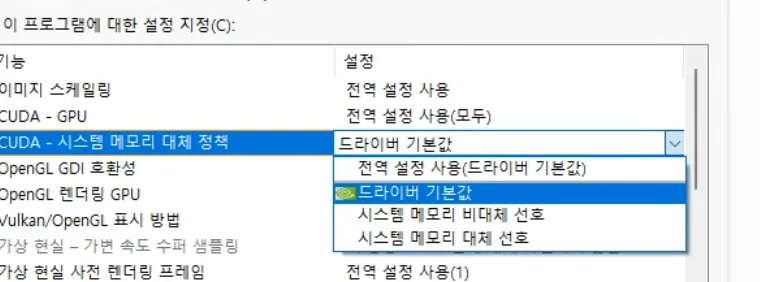
The similarly named “Prefer Sysmem Fallback” is the exact opposite, so be careful not to mix them up. With this set, ollama ps correctly shows a CPU/GPU mix when VRAM runs short, so you notice right away.
8. Security: Do Not Expose It to the Network
Ollama offers an API at http://localhost:11434 that other programs can connect to. By default it has no authentication, not even a password. If you open this port to your network so you can use it from another PC, anyone on that network can use the AI on your PC. If you want remote access, connect to the PC itself securely, for example with remote desktop, instead of opening the port.
Summary
| Step | Key point |
|---|---|
| Model size | With 12GB of VRAM, 12–14B models; account for the VRAM the desktop uses |
| Model choice | Check language quality and the license; always have a person review the output |
| Install order | Storage environment variable → install → restart Ollama → download models |
| Checks | ollama ps for 100% GPU; --verbose speed from the second run |
| Stability | Turn off sysmem fallback in the NVIDIA Control Panel |
| Security | Do not open port 11434 to the outside |
The part I struggled with most was “the model was saved to the C drive because I did not restart Ollama after installing.” If you are installing for the first time, just make sure you do the restart in step 4.